
You can use CloudLinux's Select PHP Version to change your website's PHP version in DirectAdmin. CloudLinux offers several PHP Versions to choose from.
- Log in to your DirectAdmin account.
- In the Additional Features section, click Select PHP version or type Select PHP in the navigation filter box. The option appears. Click on it.

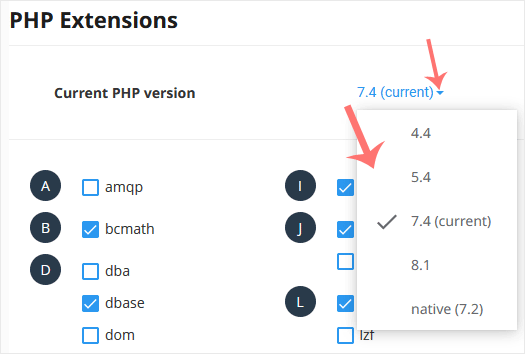
- To the right of Current PHP Version, click the drop-down menu and choose the version you want to use.
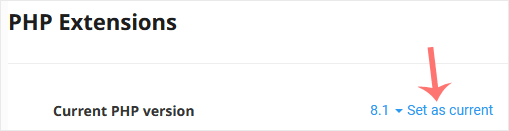
- Click "Set as current."
Manage PHP settings per website (DirectAdmin) #
The latest update allows PHP settings to be per domain or website separately manage. This gives you more flexibility when you have multiple Web sites on a single hosting account.
What can you set? #
This feature allows you to per website:
- A own PHP version choose
- Customize PHP options (such as
memory_limit,max_execution_time, etc.) - Enabling or disabling PHP extensions
- Isolate settings so that other websites are not affected
Step-by-step guide #
- Log in to DirectAdmin
- In the Additional Features section, click Select PHP version or type Select PHP in the navigation filter box. The option appears. Click on it.
- At the top, click on Per Domain Settings
- Choose the domain or website
- Put Isolation to
- Click on PER-DOMAIN in addition to the website
- Choose the desired PHP version
- Pass PHP options to
- Activate or deactivate extensions
👉 This ensures that the settings only apply to this website


 NL
NL  EN
EN  DE
DE  DA
DA  ES
ES  FR
FR  PT
PT  SV
SV